
Beneficial Ownership Submission
Annual Return (BO 04)
This guide provides step-by-step instructions for submitting Beneficial Ownership information following the filing of the Annual Return in accordance with the requirements of the Companies Act No. 7 of 2007.
1. BO System – Signing In
- Go to bo.drc.gov.lk, as shown in Figure 1.
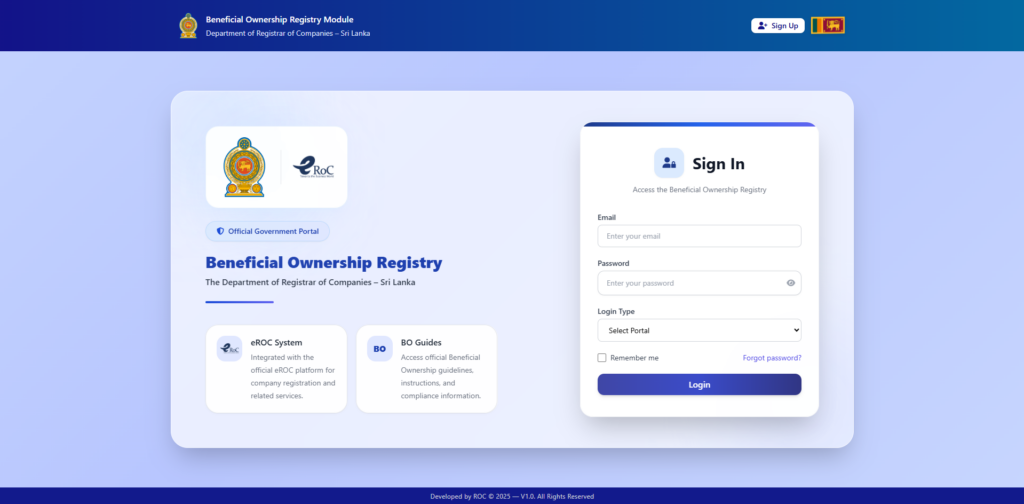
Figure 1: Login Page
- Enter your eROC registered email address and password
- From the Login Type dropdown, select the appropriate portal based on your user role.
- The available user roles are:
- Company User
- General Public User
- Authority User
- ROC Staff.
- Click the Login button to proceed “Sign In”.
Tip: If you forgot your password, use the “Forgot Password” link to reset it.
2. Company User Dashboard Overview
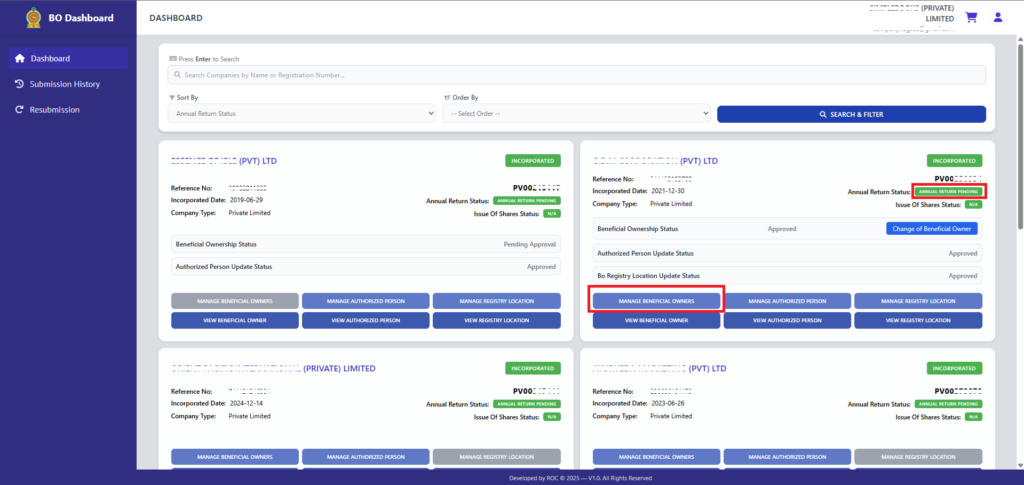
Figure 2: Company Dashboard
Your company details are displayed in the dashboard.
- If the status is displayed as “Annual Return Pending”, click the Manage Beneficial Owners button to proceed with the Beneficial Ownership Annual Return application.
- Filing the Annual Return (Form 15) through the eROC system.
- After the Filling is completed, verify that the Annual Return Pending status in the BO Company Card is displayed as “ Annual Return Pending “, as shown in the figure above.
- If the status is displayed as “ Annual Return Pending “, click the Manage Beneficial Owners
- Proceed with the Beneficial Ownership Annual Return application (Form BO 04).
3. Application Form Filling
Step 1
You are currently in Step 1 of the Beneficial Ownership Declaration process, as shown in Figure 3.
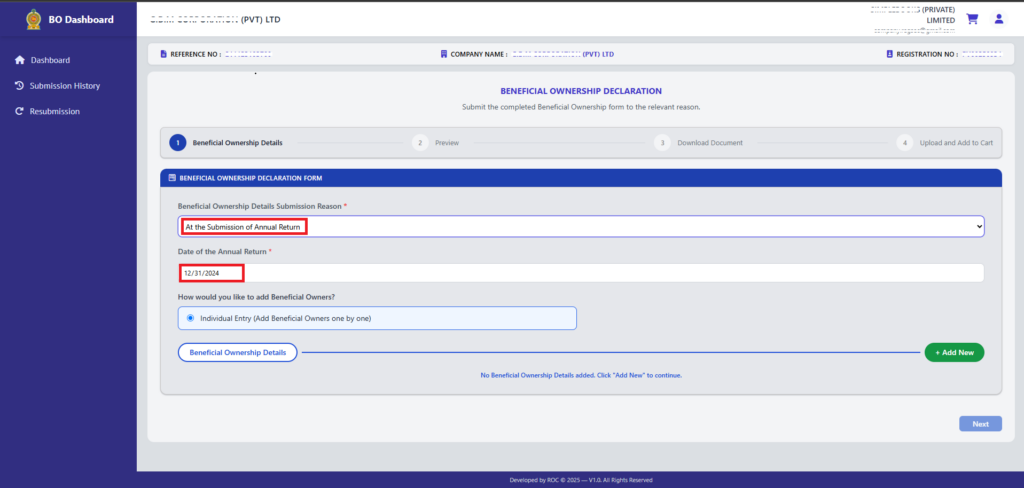
Figure 3: Application Form – Step 1
- Select “At the Submission of Annual Return” as the Beneficial Ownership Details Submission Reason.
- Once the reason is selected, an additional mandatory field named “Date of the Annual Return” will be displayed.
- The Date of the Annual Return is automatically retrieved from the eROC System. Users cannot modify, edit, or update this field.
- Click “Add New” to add a beneficial owner. The Beneficial Owner Details form will appear, as shown in Figure 4.
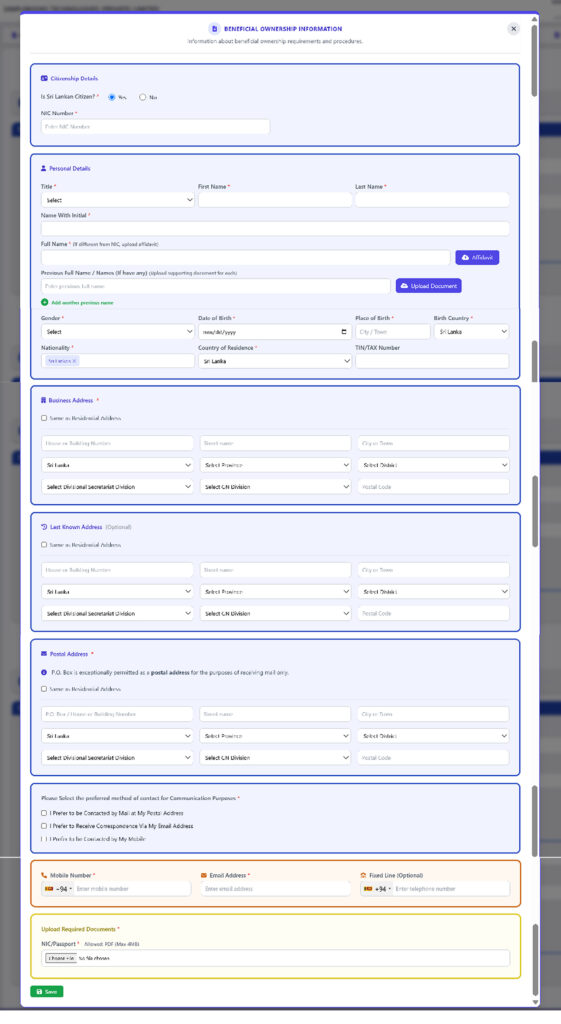
Figure 4: Beneficial Ownership Information Form
- Enter the required details of the beneficial owner and save the record. Repeat this step if there are multiple beneficial owners.
- The “Next” button will be enabled only after all required fields are completed and at least one beneficial owner has been added. Click “Next” to move to Step 2: Preview, as shown in Figure 3.
Step 2
- In Step 2, users must review and confirm that all information entered in Step 1 is accurate and complete, as shown in Figure 5.
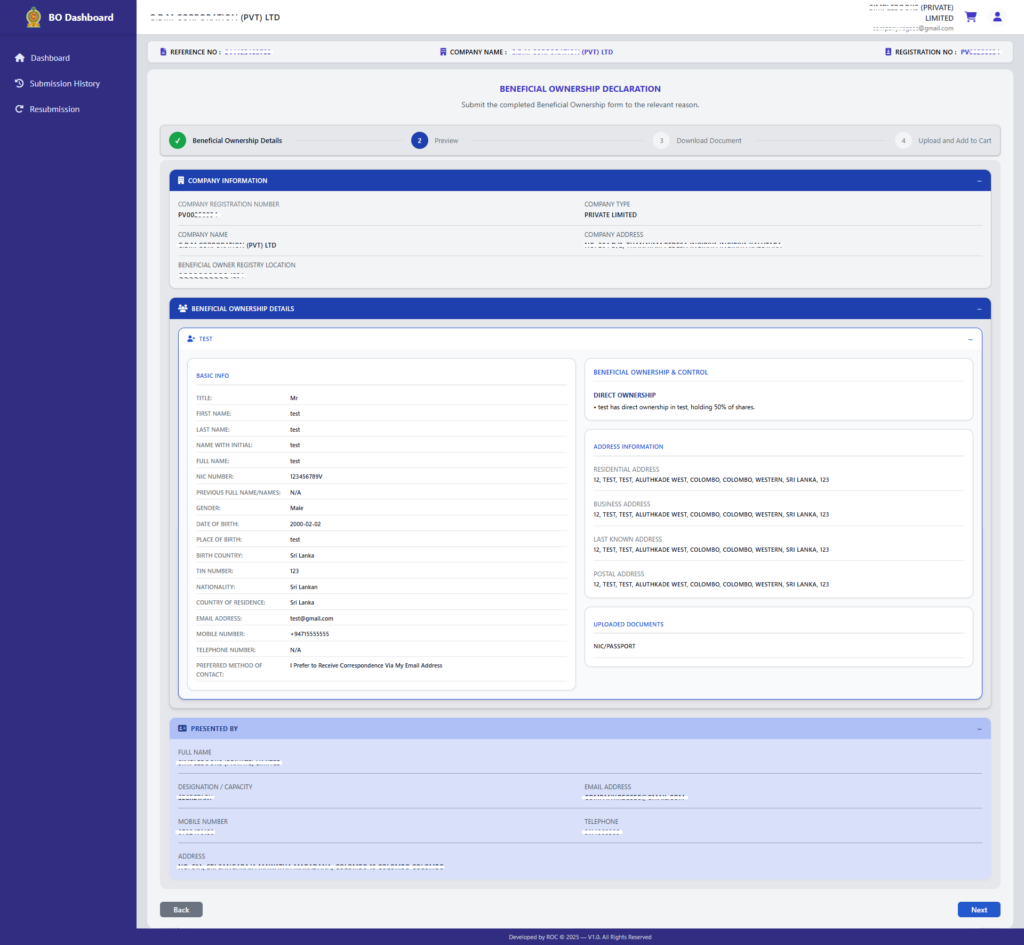
Figure 5: Preview – Step 2
- Once all information has been reviewed and confirmed as accurate, click Next to proceed to Step 3: Download Document, as shown in Figure 6.
Step 3
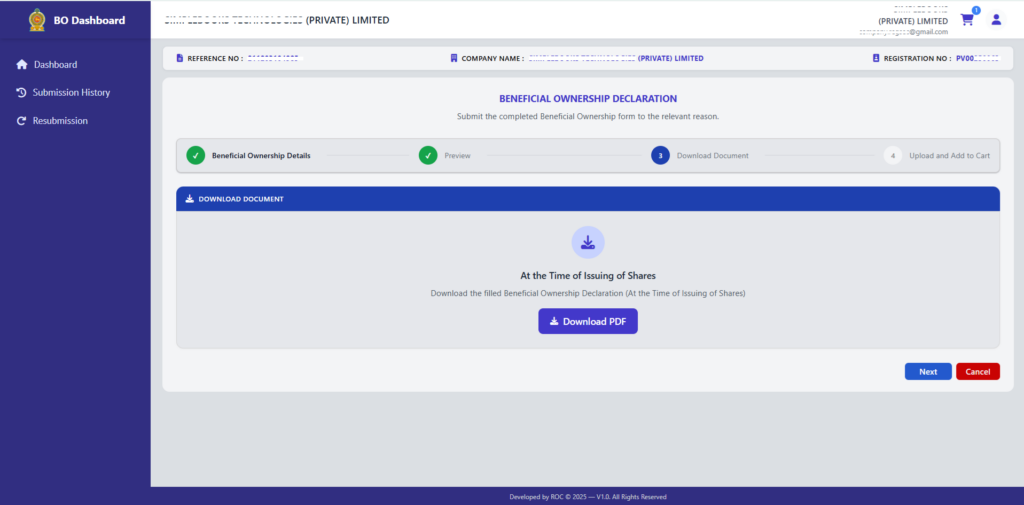
Figure 6: Document Download – Step 3
- Click the Download PDF button to download the completed Beneficial Ownership Declaration form.
- Print the downloaded document and obtain the required signatures from the authorized signatory/signatories.
- Once the document has been signed, click Next to proceed to Step 4: Upload and Add to Cart, as shown in Figure 7.
Step 4
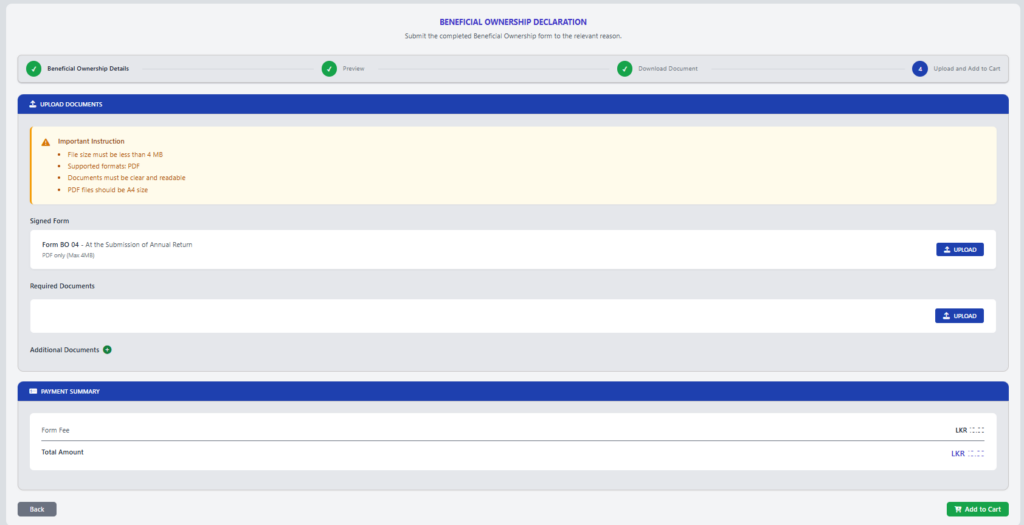
Figure 7: Upload and Add to Cart – Step 4
- Upload the scanned document using the upload option provided in Step 4, as shown in Figure 7.
- Verify that the correct document has been uploaded successfully.
- Click Add to Cart to add the Beneficial Ownership Declaration application to the cart.
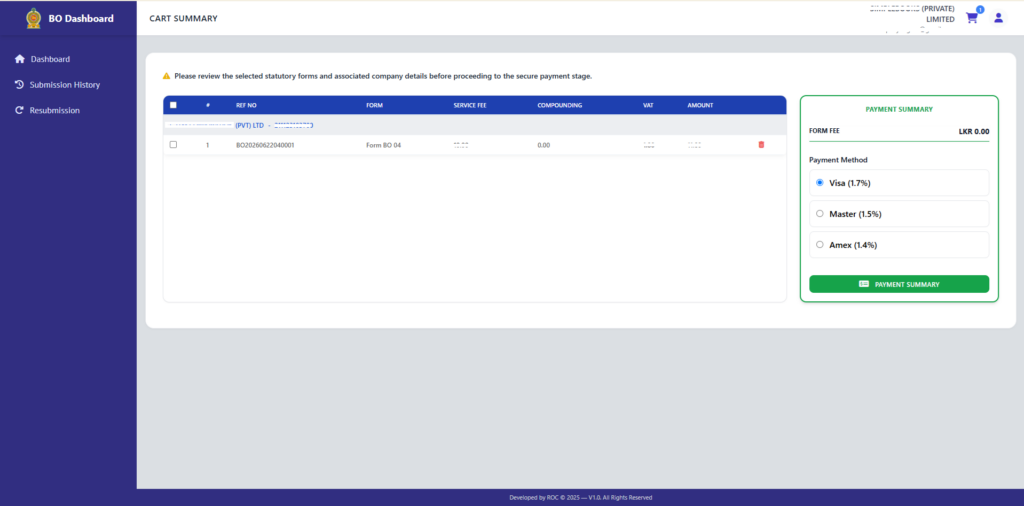
Figure 8: Cart Summary & Payment Process
- Once the application has been added to the cart, proceed with the payment and submission process, as shown in Figure 8.
- Complete the payment process
- Receive official submission confirmation and reference number.
Important: Your submission is considered complete only after successful payment and receipt of the acknowledgement
Need Help?
For technical assistance or clarification:
Email: support@drc.gov.lk | Hotline: 011 2 444 333