
Beneficial Ownership Submission
At the Time of Incorporation or Registration (BO 01)
This guide provides step-by-step instructions with short video tutorials for companies which are at Incorporation or Registration under the Companies Act No. 7 of 2007.
Workflow Overview
Signing In → Company User Dashboard → BO 05 (Authorise Person Submission) → BO 01 (Beneficial Owner Detail Submission) → Payments & Final Submission
1. BO System – Signing In
Video: Signing In to the BO System (approx. 45 seconds)
- Go to bo.drc.gov.lk
- Enter your eROC registered email address and password
- From the Login Type dropdown, select the appropriate portal based on your user role.
- The available user roles are: Company User, General Public User, Authority User, and RoC Staff.
- Click the Login button to proceed“Sign In”
- If you are a new General Public user, click on the Sign Up button at the top of the screen to create an account.
Tip: If you forgot your password, use the “Forgot Password” link to reset it.
2. Company User Dashboard Overview
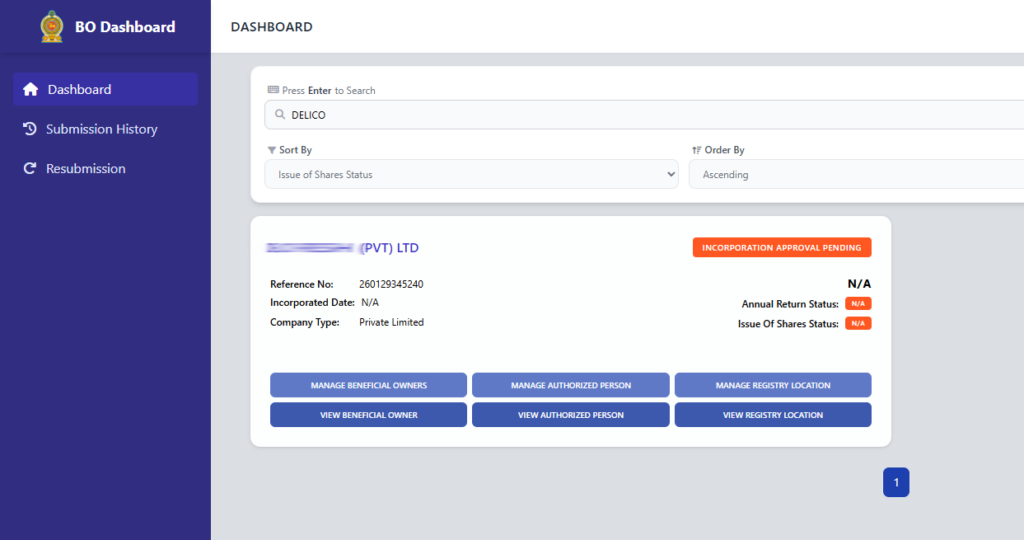
This dashboard provides a centralized view of your company registrations and related activities. On the left-hand side,
you will find the main navigation menu, where you can access the Dashboard, Submission History, and Resubmission options.
Your company details are displayed in a card format. For example, Delico Fresh Private Limited is currently shown with a
status of “Incorporation Approval Pending.” This means the registration process is still under review, and certain details
such as the incorporation date and compliance statuses are not yet available.
The “Manage” buttons allow you to update important details such as beneficial owners, authorized persons, and registry location.
The “View” buttons let you review the information that has already been submitted.
Video: Company User Dashboard Overview
After successful login, you will land on the Company User Dashboard. From here you can:
- View your company profile and current status
- See pending or completed BO submissions
- Start a new Beneficial Ownership submission
- Track payment and submission history
Action: Click on the “Manage Authorized Person” button to begin the BO 05 process.
3. BO 05 – Authorise Person Submission
Video: Complete BO 05 Process (approx. 6 minutes 30 seconds)
Sub-steps:
- 3.1 BO Form 05 Authorize Person Submission – Authorized Person Declaration Section
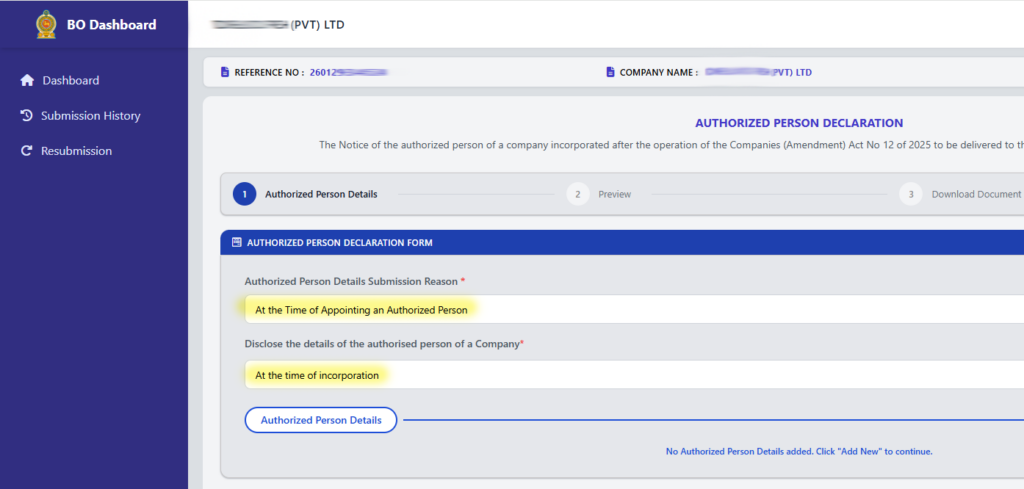
Within the form, you are first asked to select the submission reason.
By default, this is set to “At the Time of Appointing an Authorized Person.”
Next, you need to confirm when the details of the authorized person are being disclosed.
In this case, it is selected as “At the time of incorporation.”
Video: BO 05 Authorize Person Submission Overview
Below this, you will find the Authorized Person Details section. Currently, no authorized person has been added.
To proceed, click on the “Add New” button on the right-hand side.
After clicking “Add New,” you will be able to enter the required information for the authorized person,
such as their identification and contact details.
Once at least one authorized person is added, you can move to the next step by clicking the “Next” button
at the bottom right of the screen.
Make sure all required information is accurate and complete before proceeding, as this information is
essential for successful company registration.
-
- 3.2 Review & Summary – Check all entered details
-
- 3.3 Download, Print and Sign – Download the form, print and get it signed
- 3.4 Scan, Upload and Add to Cart – Scan the signed document, upload it and add to cart
4. BO 01 – Beneficial Owner Detail Submission
Video: Complete BO 07 Process (approx. 3 minutes)
Sub-steps:
You are currently in Step 1 of the Beneficial Ownership Declaration process.
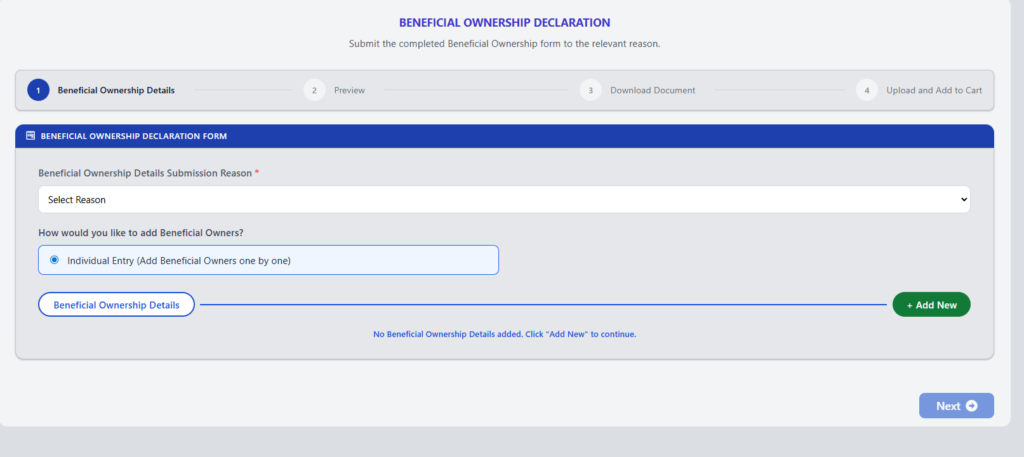
Select Reason as “At the Time of Incorporation or Registration
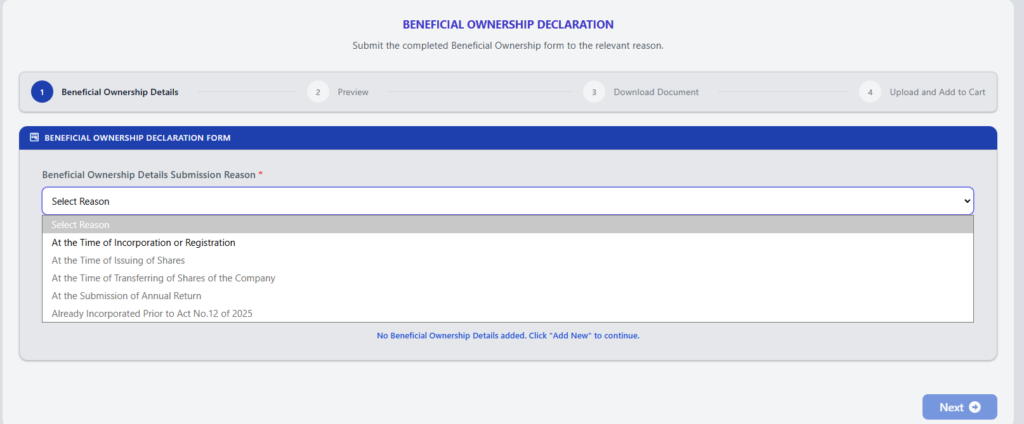
After selecting the “Beneficial Ownership Details Submission Reason,” an additional required field is displayed.
This field is “Location Address of the Beneficial Ownership Records and Registers.”
Here, you must enter the address where the company maintains its beneficial ownership records.
This is a mandatory field, and you should ensure the address is accurate and complete
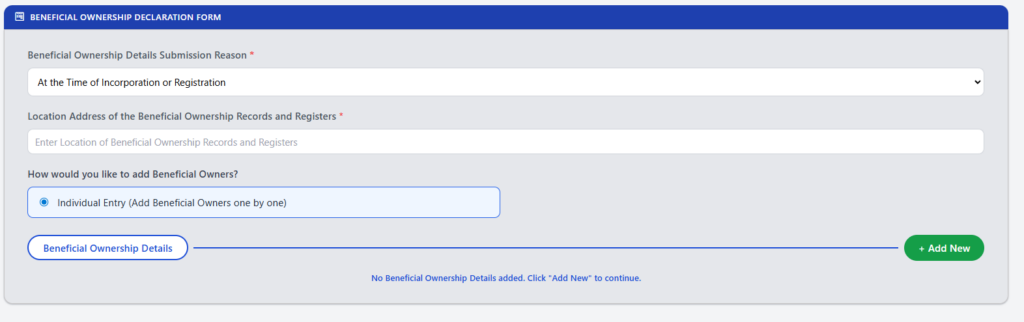
Below this, you will find the Beneficial Ownership Details section. Currently, no records have been added.
To proceed, click the “Add New” button on the right-hand side and enter the details of each beneficial owner.
Please note that the “Next” button will remain disabled until all required fields are completed and at least one beneficial owner is added.
-
- 4.1 Input Details – Enter beneficial owner information (Name, NIC, Address, Nature of Interest, etc.)
Beneficial Ownership Declaration form
Sections
00:00 Introduction & Start
01: 27 Citizenship Details section for a Sri Lankan individual
02:10 Citizenship Details section for a Foreign National
03:10 Personal Details Section
04:42 Beneficial Ownership Nature and Extent Section
— 05:52 – Direct Ownership
— 06:57 – Indirect Ownership through Intermediaries
— 08:05 – Effective Control by Other Means
09:17 #Through majority voting rights
10:21 #Through veto rights or reserve powers
11:26 #By holding key senior management positions
12:33 #Shares with nominee arrangement
13:39 Address Details Section
14:54 Address Details Section for a Foreign Individual
15:58 Last Known Address and Postal Address sections
17:18 Last Known Address and Postal Address sections for a foreign individual
18:29 Communication Preference and Document Upload Section
-
- 4.2 Review & Summary – Verify all beneficial ownership details
-
- 4.3 Download, Print, Sign, Scan and Upload – Download, print and obtain required signatures, Scan and Upload
At the top, both the Beneficial Ownership Details and Preview steps are marked as completed, and you are currently
on the Download Document step.
In the center of the screen, you will see the option to download the generated document. The system has automatically
prepared the Beneficial Ownership Declaration based on the information you provided. The document is labeled according
to the selected submission reason, which in this case is “At the Time of Incorporation or Registration.”
To proceed, click the “Download PDF” button. This will download the completed form to your device.
After downloading, you should review the document carefully. Ensure that all details are correct, then print and
sign the document as required.
Once the document is ready, click the “Next” button to proceed to the final step, where you will upload the
signed document and complete the submission process.
-
- 4.4 Add to Cart – Cart Summary and Payment Selectiont
- Review items in your Cart
- Proceed to Payment section
- Select your preferred payment method
5. Payments & Final Submission
Video: Payments and Final Submission (approx. 1 minute 30 seconds)
-
- Complete the payment process
- Receive official submission confirmation and reference number
Important: Your submission is considered complete only after successful payment and receipt of the acknowledgement.
Need Help?
For technical assistance or clarification:
Email: support@drc.gov.lk | Hotline: 011 2 444 333